See Through Windows
Recently, I discovered a neat feature in Visual Studio .NET 2008: when an Intellisense popup is visible, it usually obscures some part of your code. To see what's hidden underneath the popup window, press the Control key. This will make the popup transparent until you release the Control key - simply brilliant, and brilliantly simple.
Why can't I have that in Windows as well? And how hard can it be to write a little task bar application to make that work? The answer is: not very - primarily thanks to the .NET Framework. It took me all of two hours to get a basic functioning task bar app that makes the foreground window transparent when you press a hotkey, and turns it back to opaque when you press the hotkey again. Of course, making the transparency level and the hotkey configurable, creating an icon for the application, and adding an installer took me the rest of the day, but here it is: See Through Windows.
When you run See Through Windows, all you get is an icon in the System Tray that looks like blueish sunglasses:

The See Through Windows Icon
Double-clicking on that brings up the Options window:
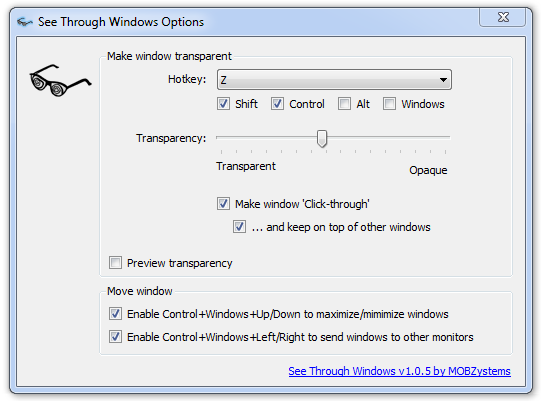
The See Through Windows options window
Here's where you configure the hotkey and the level of transparency to use. Check the Preview check box to see the effect of the transparency setting.
New in version 1.0.5 is the ability to make transparenticized windows 'Click-through'. In essence, this makes the window disappear as far as the mouse is concerned. You cannot click it anymore: mouse clicks will 'fall through' to underlying windows. You can still activate the window using Alt+Tab, however. (You'll need this to untransparenticize the window again!) Optionally, when a window is rendered 'Click-through', you can choose to keep it in front of other windows. This creates a sort of overlay on your screen that's impervious to mouse clicks - almost as if there's a glass plate with an semi-transparent image on it in front of your monitor. I'm sure you can think of some good use for that ;-)
Good ideas from Windows 7
Better well stolen than badly invented, they always say. Well: as of version 1.0.2, See Through Windows implements an idea I stole from the Windows 7 beta. Windows+Up and Windows+Down (i.e. the Windows key in combination with the up and down arrow keys) maximize and minimize the current window. (Update: To avoid conflicts with Windows 7 itself, See Through Windows 1.0.3 now uses Control+Windows+Up/Down/Left/Right.) Try it and you'll love it. Also, if you use multiple monitors, you'll wonder how you ever got along without Windows+Left and Windows+Right, which move the current window over to the next (or previous) monitor.
If you experience problems with the use of these keys (for instance, if they conflict with another application), you can disable them by unchecking the appropriate check boxes in the Options window.
From version 1.0.9, this feature was removed. Windows 10 supports it out of the box.
Proof
Pressing the hotkey (Shift+Control+Z by default, which is really easy to press) will turn the foreground window transparent. Here's the proof - an Explorer window on top of Outlook:
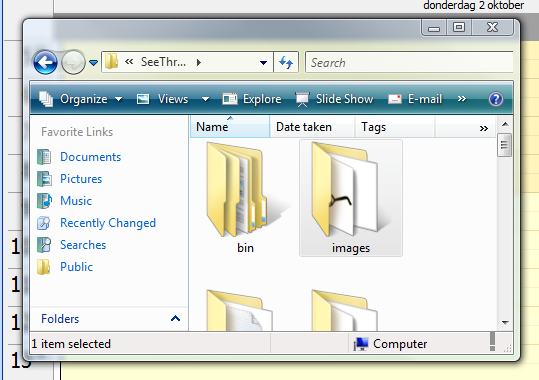
Before...
Now press the hotkey:
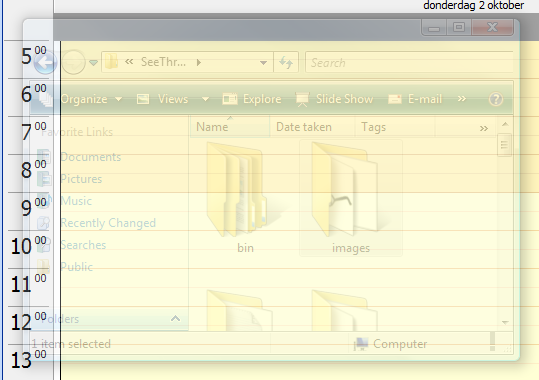
And after!
Press the hotkey again to go back to the way things were. Incidentally: you don't have to do that: you can 'transparenticize' as many windows as you like, and turn them opaque again in any order you like - or not. When exiting, See Through Windows will change all windows back the way they were.
While this is somewhat of a useless example, you could use See Through Windows to keep an eye on some running task, whose status is obscured by the window in front of it, or have a quick look at the web page you're writing about, etc. I find myself using it all the time, anyway.
Notes
The installer will put a shortcut to See Through Windows in your startup folder, making it run every time you log on. However, it won't run See Through Windows right after you install it, so you have to start it manually the first time. You can do that using the shortcut in the Programs menu.
I owe thanks to Max Bolingbroke, who published a class on his weblog to support global hotkeys in .NET. I used his code unchanged and that saved me a lot of time.
Updates
To update, just install the latest version, but make sure See Through Windows is not running when you do. Right-click on the tray icon, and select Exit before updating. You can then re-start See Through Windows using the Programs menu.
Version 1.0.9 is based on .NET 10, and will only run on Windows 10 and up. It is now a self-contained .NET 10-app, so no .NET download is required. 32-bit version for both 32-bit and 64-bit Windows. New in this version: automatic update checks and a button to restore all windows - i.e. cancel all transparency:
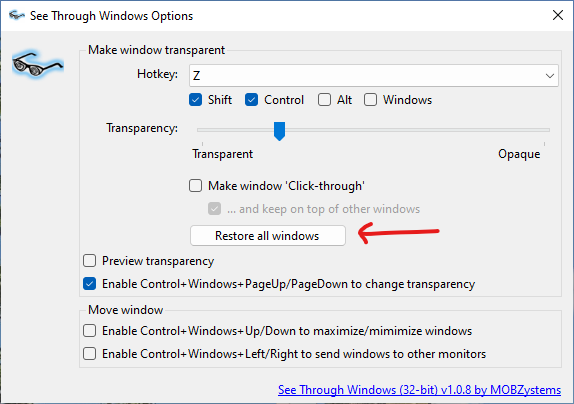
Note: the Move Window checkboxes are no longer present in this version
Version 1.0.8 contained a stupid installer bug and was withdrawn.
Version 1.0.7 is based on .NET 6, and will only run on Windows 7 and up. It is now a self-contained .NET 6-app, so no .NET download is required. The downside is a significantly larger download (>50MB). Functionally, nothing was changed since version 1.0.6, except that the hotkeys for moving windows around are now disabled by default. This release is 32-bit only for now.
Version 1.0.5 adds the option to make windows 'Click-Through' and/or keep them on top of all other windows.
Version 1.0.3 adds the Control key to the Windows hotkeys of 1.0.2.
Version 1.0.2 adds support for Windows+Up/Down/Left/Right.
Version 1.0.0 prevented Windows from logging users off nicely [dumb, dumb]. Also, in 1.0.1, starting a second instance of See Through Windows displays a message box and prevents the second instance from settling into the system tray.
Download See Through Windows
Happy with this tool? Consider buying us a cup of coffee